This manual provides a detailed overview of the functions and individual parts of your acoustic pod's display.
1. Getting Started
After connecting the pod to a power source, it will take approximately 2 minutes to fully activate the system. Once activated, the pod will respond immediately upon opening the door, as long as it remains continuously powered.
When the motion sensor detects your presence, an introductory animation will play, accompanied by an audio jingle. The ambient lighting will then turn on, gradually transitioning into pro-cognitive full-spectrum lighting. Following this sequence, the pod will default to its pre-set values, including the activation of soundmasking "noise" at a predefined intensity.
You can begin using the pod as soon as it completes its activation sequence. To customize features like light, ventilation, sound, and moods, simply touch the display. The "Ventilation" tab will be displayed first.
2. Stand-by screen (logo, date, time)
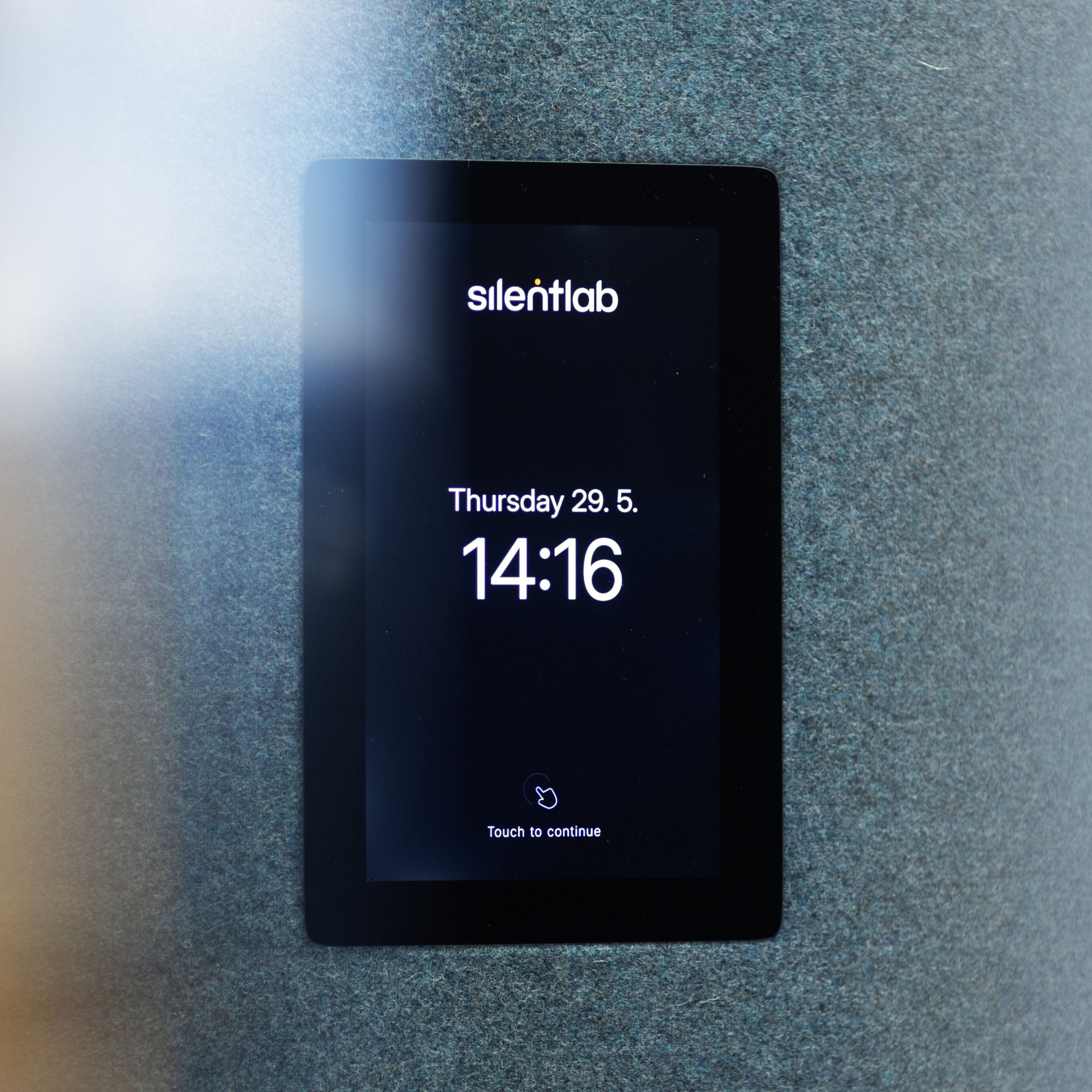
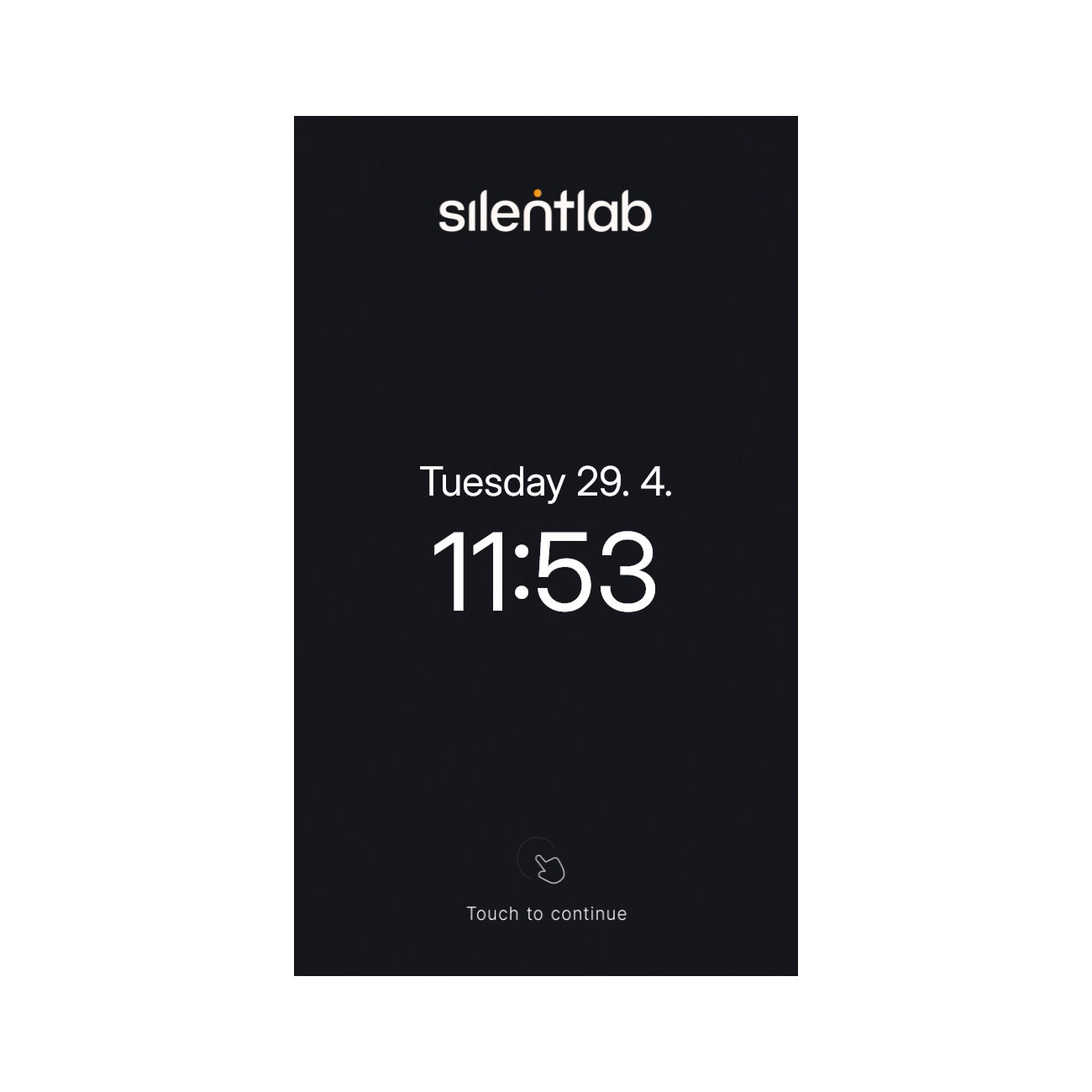
When entering the product, a display is automatically activated, showing an animated logo first, followed by an initial screen with the logo, date, and time. Simply tap the display to load the main menu.
3. Ventilation
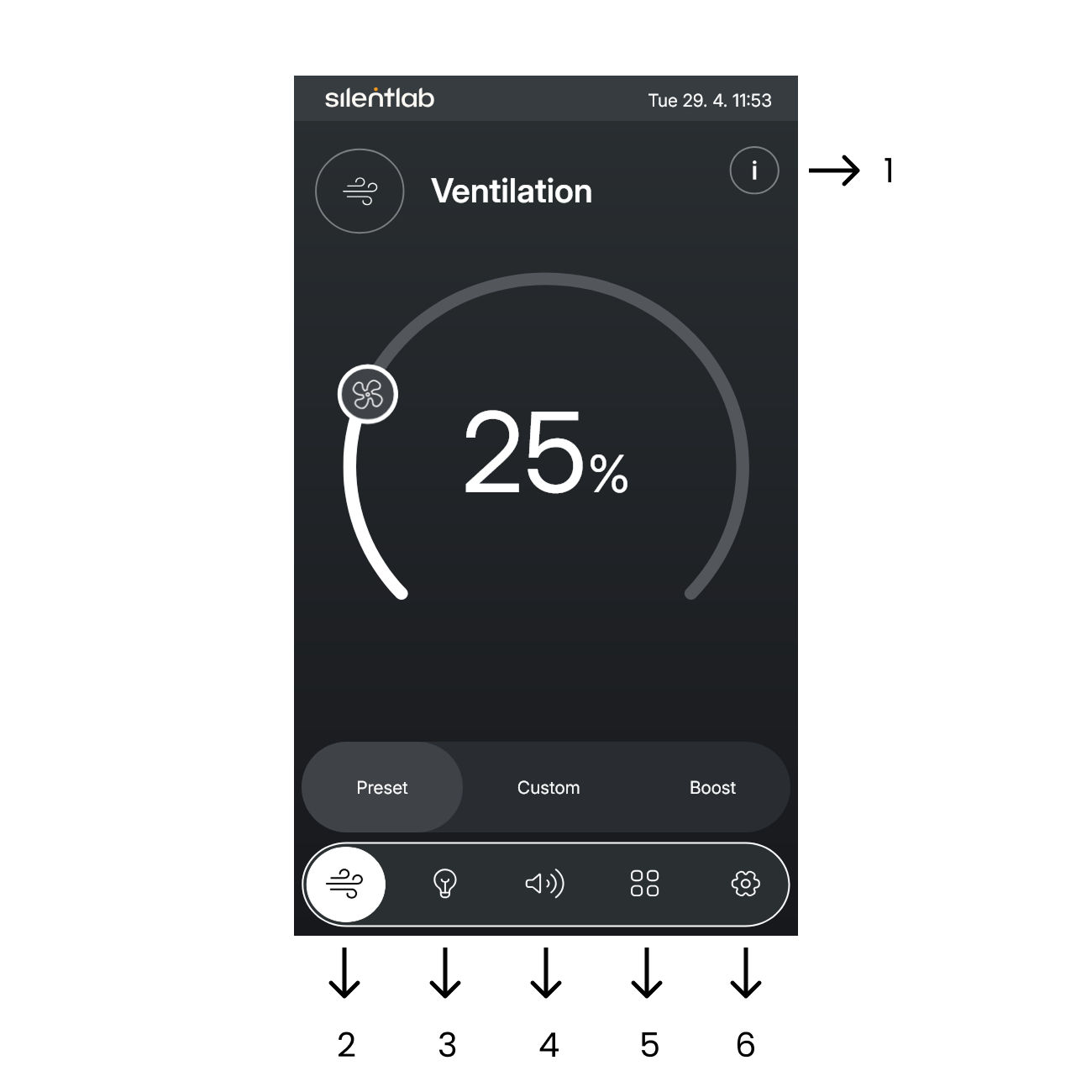
Right after tapping, the first interface to appear is the ventilation control screen.
The intensity can be adjusted manually by sliding your finger along a circular arc.
The individual options — "Preset," "Custom," and "Boost" — are listed on the adjacent screen.
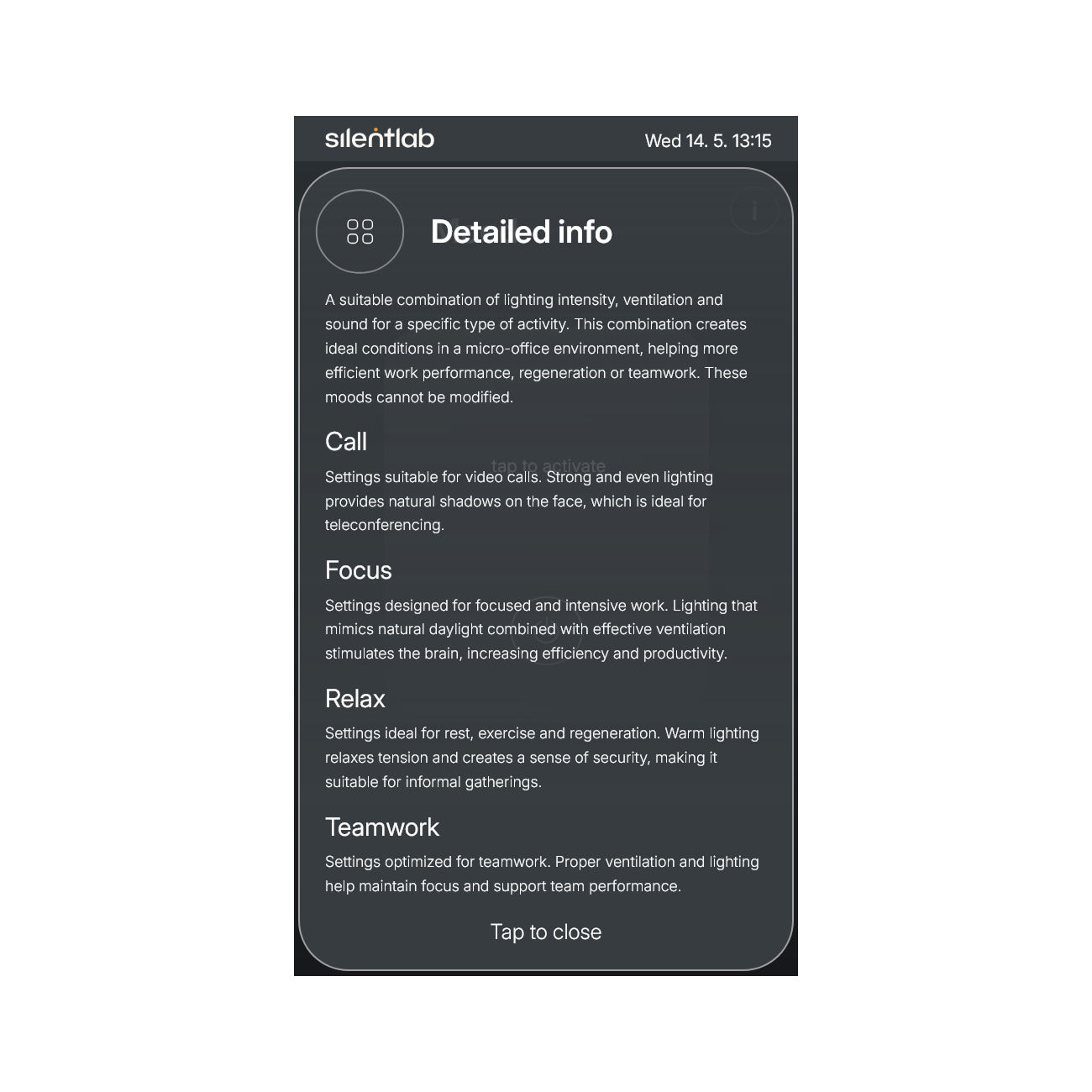
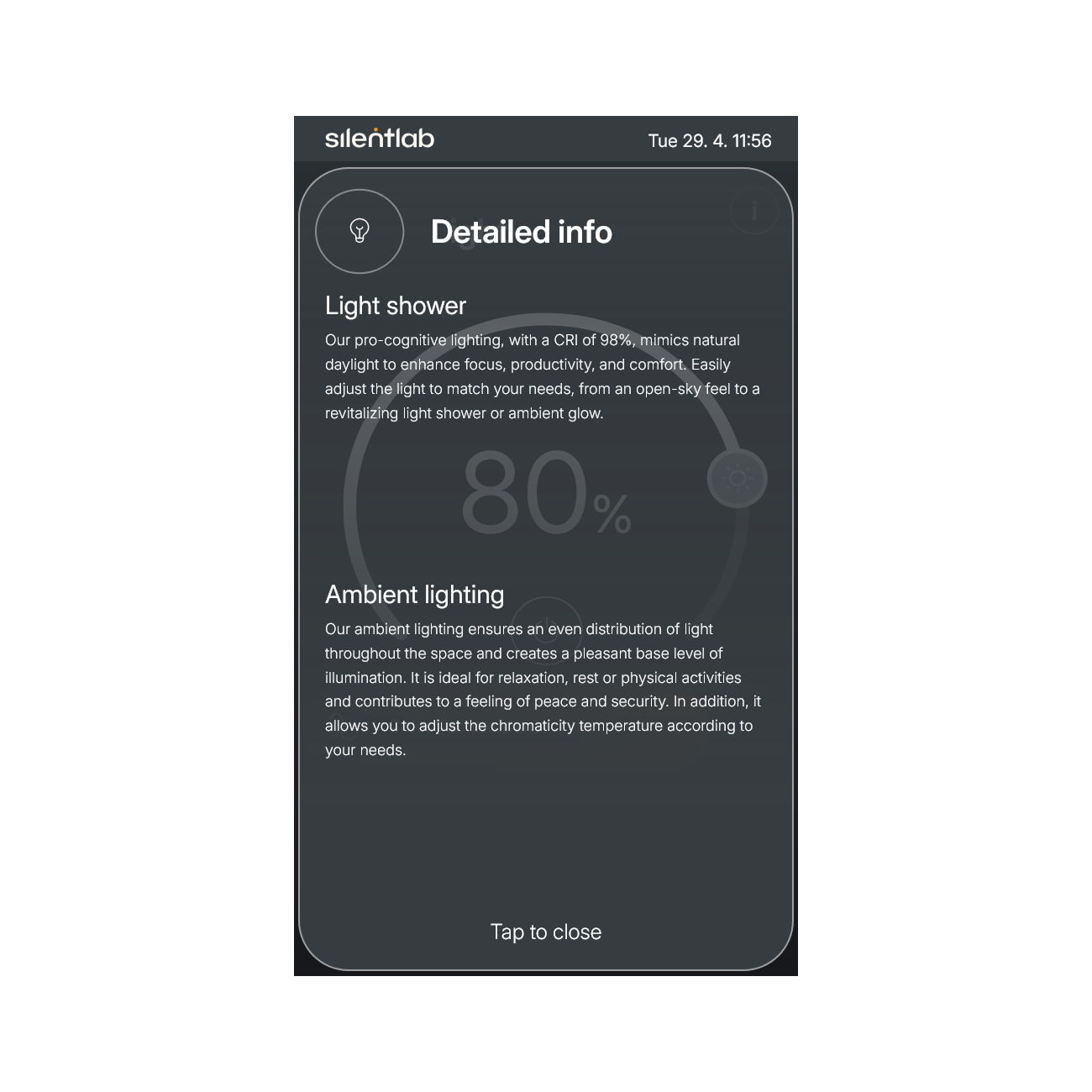
Detailed info explaining each function
Ventilation
Light
Sound
Mood
Information
4. Light
This button works across the entire display interface and allows any function to be completely turned off with ease.
The 'Light' illumination turns on automatically in the 'Natural light' mode. The intensity can be adjusted by touch, or it can be completely turned off using the button.
The second option is the 'Ambience' lighting, which allows adjustment of both intensity and color temperature. Only one type of lighting can be active at a time – either 'Light' or 'Ambience' – it is not possible to have both on simultaneously.
“Natural light” is very close to natural daylight. The large surface area of the light source ensures even illumination throughout the entire interior of the product.
For more information, see the icon.
By touching with your finger, you can adjust the color temperature: swiping to the right makes the light warmer, and swiping to the left makes it cooler.
“Ambience” activates a subtle light strip. A touch-sensitive area is included, allowing adjustment of the color temperature to the user's mood. Both the intensity and the temperature can be adjusted.
5. Sound
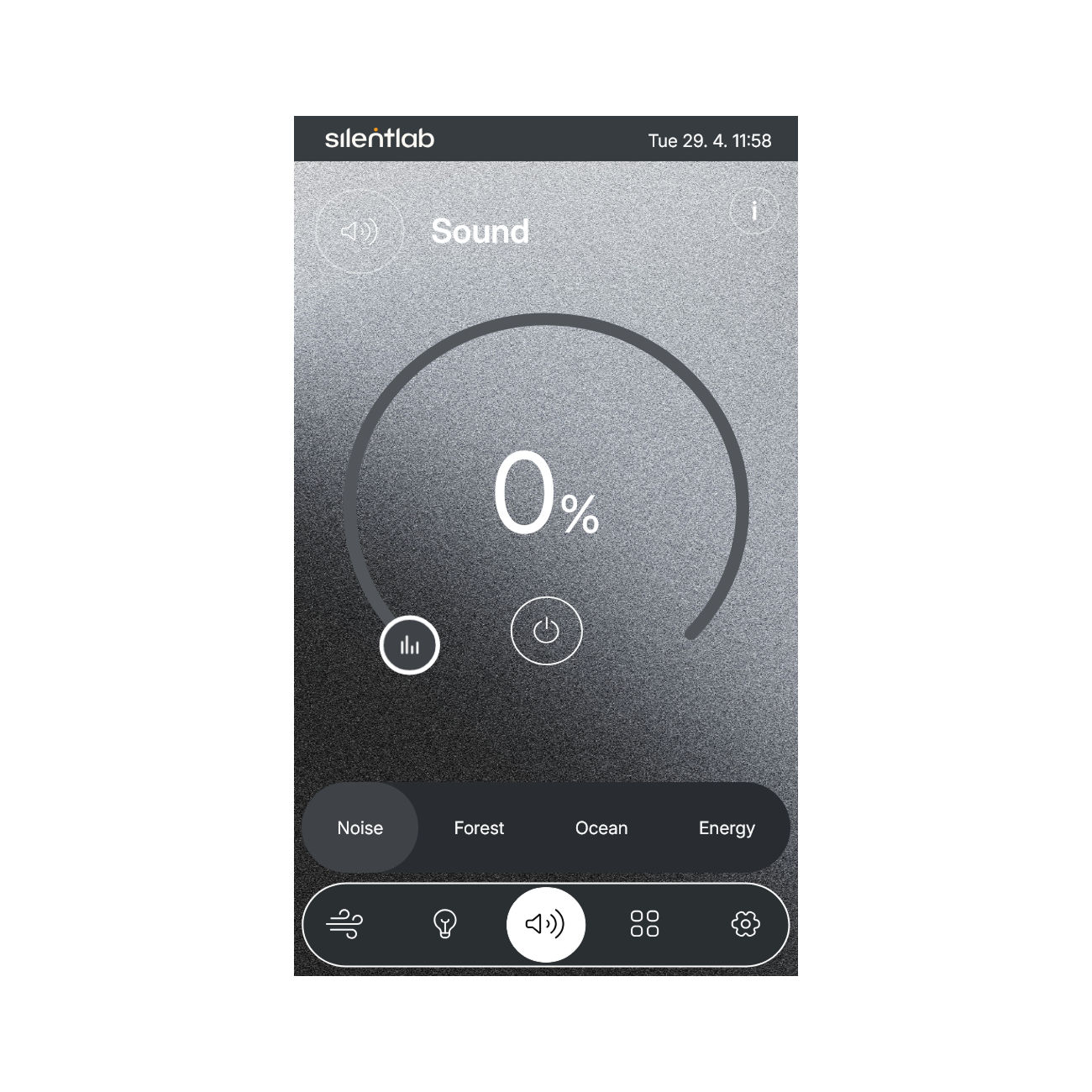
Immediately upon activation, the pod automatically begins playing "noise." This feature is designed to mask unwanted exterior sounds, ensuring the best possible user experience.
The sounds are divided into four categories, each with its own purpose and a more detailed description available in the corresponding section. If none of the sounds are not suitable for the user inside, they can be completely turned off using the button or by setting the volume to 0%.
6. Mood
The 'Mood' function is activated when the user taps the mood icon and hits the 'tap to activate'. At that moment, the first mood to launch is 'Call' in default. Each mood
is designed for a different type of activity. When switching to another tab, such as 'Light', the values can be adjusted freely. Upon returning to the 'Mood' tab, the prompt
'tap to activate' will appear again, and once tapped, the values will reset to the default settings for that specific mood.
7. Information
For continuous updates, time synchronization, and remote user support, your pod can be connected to Wi-Fi.
This connection must be performed by authorized personnel.
Time and date, including time zone.
Detailed product information.
Software information and serial number.
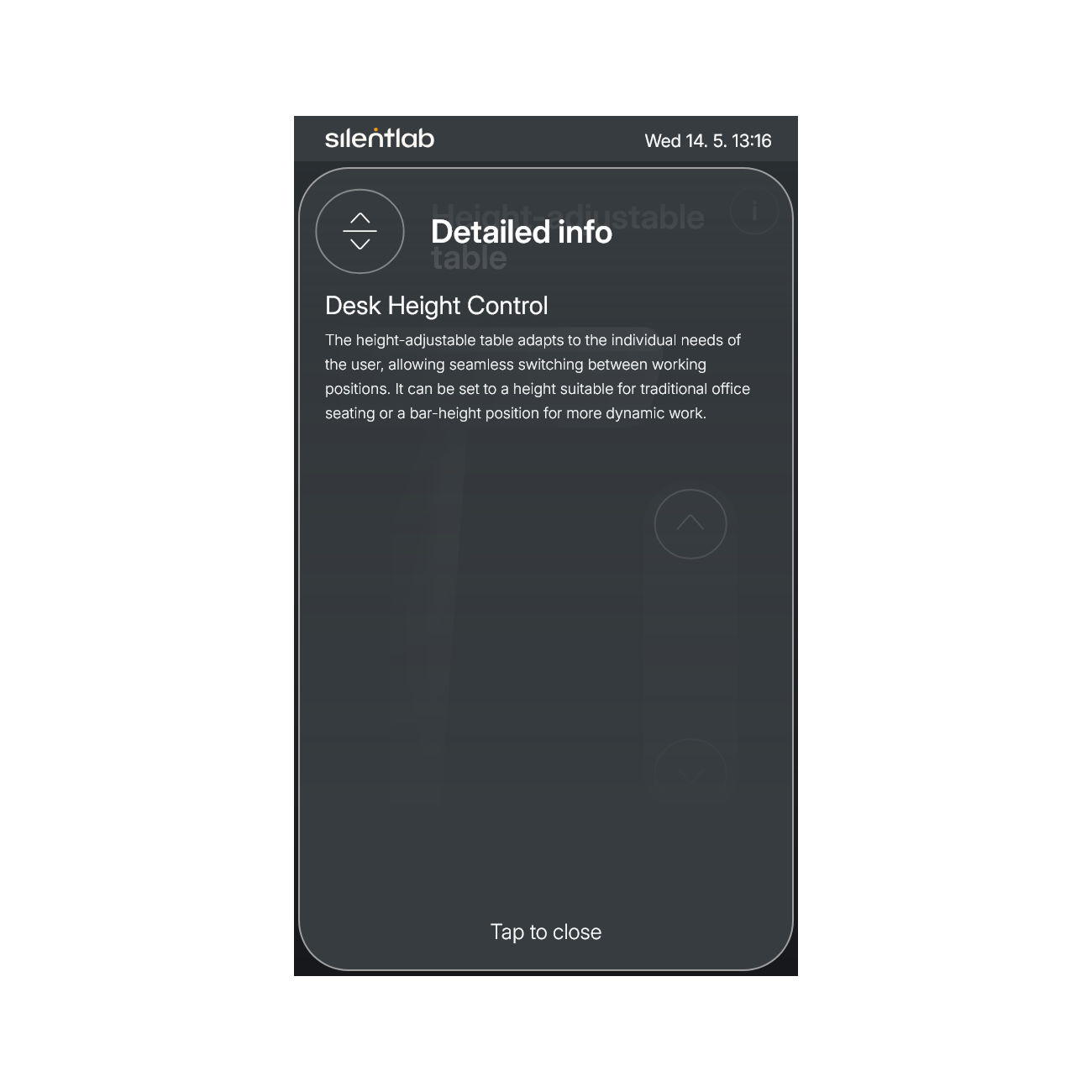
If your SPOT pod includes the optional height-adjustable table, this feature will be activated during the initial setup by authorized personnel. Once set up, the user interface will automatically expand, adding a new control icon to the bottom menu for convenient table adjustment.
Important
You can customize the pod's default settings, such as ventilation and light duration, or default intensity values, through the configuration menu. Access to this menu is restricted to authorized personnel, who are responsible for any potential issues or misuse.
Previous stepCopy link to sharePrint / PDFNext step

 This button works across the entire display interface and allows any function to be completely turned off with ease.